cmdlet

What is a cmdlet?
cmdlet -- pronounced command-let -- is a small, lightweight command that is used in the Windows PowerShell environment. A cmdlet typically exists as a small script that is intended to perform a single specific function such as coping files and changing directories. A cmdlet and its relevant parameters can be entered in a PowerShell command line for immediate execution or included as part of a longer PowerShell script that can be executed as desired.
How do cmdlets work?
Cmdlets employ a verb/noun naming pattern that is designed to make each cmdlet easier to remember and read. As an example, a typical Get-ChildItem command uses the verb Get followed by the noun ChildItem. When executed through the PowerShell runtime environment, the command lists or returns the items in one or more specified locations. If items are in a container, the command gets the items inside the container -- child items.
Cmdlets are based on .NET classes and rely on the use of .NET objects. Thus, cmdlets can receive objects as input and deliver objects as output, which can then feed the input of subsequent objects, enabling cmdlets to form a command pipeline.
Most cmdlets support the use of parameters as part of the input mechanism. Parameters can be added to the cmdlet at the command line or passed to cmdlets through the pipeline as the output from a previous cmdlet. The arguments or values of each parameter detail the actual input that the cmdlet will accept, how the cmdlet should work and what -- if any -- data the cmdlet outputs. Switches are specialized arguments that offer preset options or selections.
Consider a simple cmdlet such as Get-Help; the syntax of the cmdlet to get help for desired cmdlets from an online library is:
get-help <cmdlet-name> -online
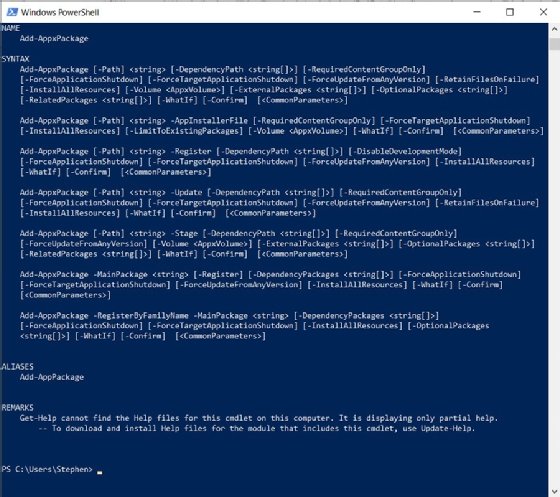
Get-Help is the cmdlet. The argument of the parameter <cmdlet-name> is the name of the cmdlet that needs more information. In actual use, users would substitute the name of the desired cmdlet. It can be any cmdlet. The switch is -online, which tells PowerShell to reference and return help for the desired cmdlet from Microsoft's online library. For example, to get more help about the Add-AppxPackage cmdlet, the PowerShell command would look like this:
get-help add-appxpackage -online
To use local help for the same cmdlet, eliminate the switch:
get-help add-appxpackage
Cmdlets vs. functions
Although PowerShell relies on processing cmdlets, there is a second type of command called functions. Functions are also interpreted through PowerShell and are routinely used in scripts. It's common to confuse cmdlets and functions. However, cmdlets and functions differ in several important ways.
Cmdlets are .NET classes written in higher programming languages such as C# and compiled in .dll files so that PowerShell can access them. Thus, cmdlet sets can be easily added and new cmdlets can be created and made available to PowerShell. By comparison, functions tend to be integrated into PowerShell and aren't compiled but written in the PowerShell language. Functions tend to be longer and more complex entities that can typically handle parsing, error presentation and output formatting, where cmdlets are often too small and simple to handle such details.
Still, the essential difference between cmdlets and functions is in such packaging issues including setup, installation and features. In actual practice, there is little noticeable difference between cmdlets and functions. Like cmdlets, functions can have parameters and return values that can be displayed or assigned to variables. Both cmdlets and functions are readily used in PowerShell scripts.
Popular cmdlets
There are hundreds of cmdlets available by default under today's PowerShell, and hundreds more cmdlets can be added to PowerShell to support advanced applications such as virtualization platforms and systems management tools. To find a complete index of all the cmdlets that are currently available in PowerShell on a computer, type:
get-command -commandtype cmdlet
This returns a complete list of cmdlets currently in PowerShell. However, this doesn't provide specific details about the purpose or syntax of each cmdlet. To gather more specifics about desired cmdlets, use the Get-Help cmdlet as described above. For example, to learn the name, syntax, aliases and notes about the Unblock-File cmdlet, use:
get-help unblock-file
and PowerShell returns complete examples of proper syntax and parameters. PowerShell users often benefit by getting familiar with a selection of commonly used PowerShell cmdlets, which include:
| cmdlet | Function |
| Get-Location | get the current directory |
| Get-ChildItem | list items in a directory |
| Get-Help | get more information about a desired cmdlet |
| Stop-Process | terminate a PowerShell process |
| Set-Location | change the current directory |
| Copy-Item | copy files |
| Remove-Item | remove a file or directory |
| Move-Item | move a file |
| Rename-Item | rename a file |
| New-Item | create a new empty file or directory |
| Invoke-GPUpdate | force a group policy update |
| Stop-Computer | shut down a local or remote computer |
| Restart-Computer | restart a local or remote computer |
| Add-Computer | join a computer to a domain |
How to write a simple cmdlet
Cmdlets are typically simple entities and can be written in just several dozen lines of C# or other languages that support .NET object code. Although the actual work and complexity of a cmdlet can vary dramatically, the actual process involved in outlining a new cmdlet can usually be broken down into several common steps that involve defining the cmdlet, accepting parameters and then processing the parameters to deliver an output. One simple example might be to create a cmdlet that takes a person's name and generates a test message.
1. Because this is a cmdlet, the developer is basically creating an object, so first specify the parent class for the cmdlet. A cmdlet derives from either the System.Management.Automation.Cmdlet or System.Management.Automation.PSCmdlet classes. A cmdlet in C# can use the using command such as:
using System.Management.Automation;
2. Next, specify the name of the object class. For example, if the new cmdlet is supposed to simply send a test message, C# might use the namespace command such as:
namespace SendTestMessage
3. Declare the class of the object as a cmdlet. The cmdlet attribute enables developers to stipulate the verb and noun elements of the cmdlet name. For example, a C# command that defines a cmdlet and names it "Send-Test" might appear as:
[Cmdlet(VerbsCommunications.Send, "TestMessage")]
4. Specify any parameters for the cmdlet using the parameter attribute. The length and complexity of this code section depends on the number and types of parameters that the cmdlet is intended to handle. For example, if the cmdlet is merely intended to accept the name of a person to receive a test message, a parameter might be to input that individual's name and create the variable string "name". In C#, the code sequence might appear such as:
[Parameter(Mandatory=true)]

    public string Name

    {

      get { return name; }

      set { name = value; }

    }

    private string name;
5. Now the cmdlet has been defined and accepted parameters, the cmdlet code can focus on the actual task at hand. In this case, the task is to take the name parameter and output that name to a simple test message. As an example, the WriteObject command can produce a simple output such as:
     {

      WriteObject("It is good to meet you " + name + "!");

     }
Remember that this is just one simple example and doesn't detail all the commands, punctuation -- indenting and bracketing -- and supporting code that might be required to complete such a cmdlet successfully. Developers can refer to C# and PowerShell documentation, detailed texts on cmdlet creation and countless examples of cmdlets for more programming guidance.