freshidea - Fotolia
5 reasons printer redirection causes Windows printing problems in RDS
Windows printing problems are a pain. If you have printer redirection issues with the Remote Desktop Protocol in RDS, check user permissions, client requirements and more.

At the end of the day -- or the beginning -- you just want your printer to print. With Microsoft's Remote Desktop Services, printer redirection problems might be the most common issue end users encounter.
Here are five of the most common glitches that you should know as an IT admin when Microsoft's Remote Desktop Protocol (RDP) printer redirection is not working within Remote Desktop Services (RDS) connected to a terminal server.
1. The client doesn't support RDP printing
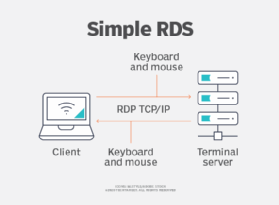
If a user complains about RDP printer redirection not working while connected to a Microsoft RDP session in RDS, you can't assume that the user is working from a Windows device. The user could be working from a macOS device, a web client, a smartphone or something else.
The problem with this is that not all RDP clients are created equal. Some RDP clients support certain features and capabilities, while other clients do not. Printing is one such capability.
Microsoft provides a chart that illustrates which clients support printing and which do not. Simply put, macOS has limited support for printing and web clients only support PDF printing. Android, iOS and universal clients do not support printing.
2. Printer redirection has been turned off
The Microsoft RDP client itself is what controls hardware redirection -- the terminal services do not. The client contains settings that make it possible to enable or disable the redirection of various hardware types. If an admin disables print redirection, then print jobs will be sent to the device's locally mapped print device rather than being sent to a remote print device via the RDP.
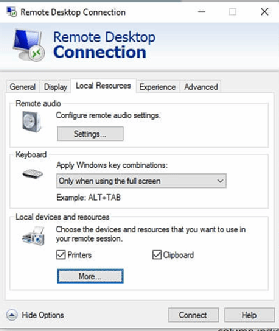
Checking the printer redirection status is simple, although the procedure varies depending on the version of the RDP client. In Windows 10, for example, you can open the RDP client and then click the Show options link in the bottom-left corner of the interface. Next, click on the Local Resources tab, and then make sure that the Printers checkbox is selected to connect to the printing devices, such as an HP LaserJet or an Epson EcoTank Pro (Figure 2).
3. Group Policy is blocking printer redirection
Not surprisingly, any modern version of Windows contains Group Policy settings related to device redirection. Among these settings is one that you can use to either allow or forbid printer redirection.
You can find the printer-related settings at Computer Configuration > Policies > Administrative Templates > Windows Components > Remote Desktop Services > Remote Desktop Session Host > Printer Redirection (Figure 3).
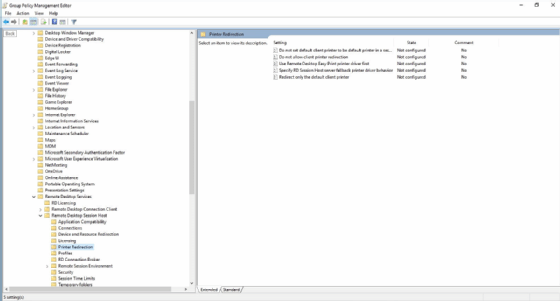
You should make sure that the Do not allow client printer redirection setting is either not configured or disabled. While you're at it, it's a good idea to review your other printer redirection settings to make sure that nothing is amiss.
4. The remote machine is not acting as a print server
If you're redirecting printing through RDS, then you'll need to configure the remote machine to act as a print server, even if the print devices are not directly connected to that server. Windows Server is configured by default to act as a print server, but you should still make sure that this functionality has not been disabled.
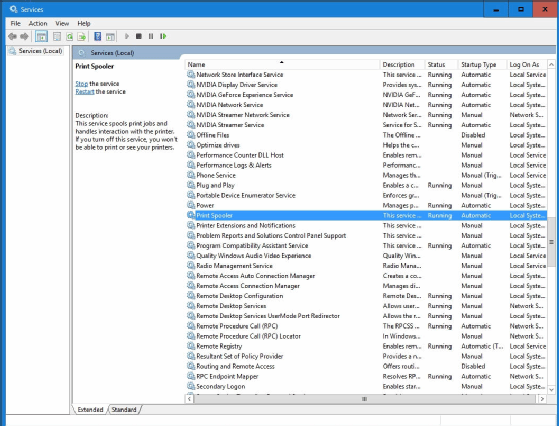
To do this, you will first need to make sure that the Print Spooler service is running on the server (Figure 4). Simply enter the SERVICES.MSC command in the server's Run prompt to open the Service Control Manager.
Next, open the Server Manager and select the Print Management command from the Tools menu. Make sure that the server is listed by name in the Print Servers section.
5. The server does not recognize the printer
If RDP printer redirection is not working properly, then open the Print Management console on the remote server and expand the Printers container for the print server. It should list the printer that you are trying to print to (Figure 5). While you are at it, check the Drivers container to make sure that the correct driver is listed for the printer.
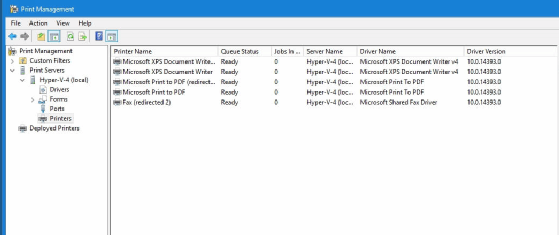
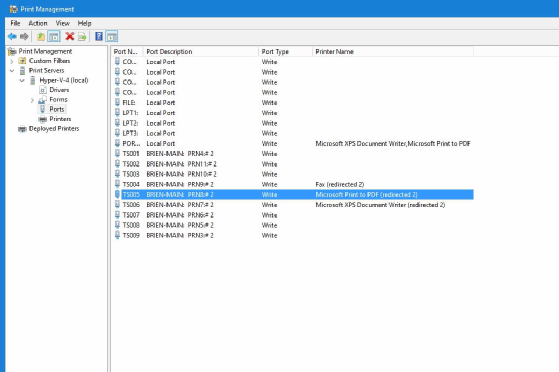
Finally, check the Ports container. This container should confirm printer redirection from the client. For example, a desktop named Brien-Main is redirecting Microsoft Print to PDF to a remote print server through port number TS005 (Figure 6).