Home > Virtual Desktop Tips > Virtual desktop management tips > Manage Remote Desktop Services with Windows PowerShell
Virtual Desktop Tips:
EMAIL THIS
 TIPS & NEWSLETTERS TOPICS 

VIRTUAL DESKTOP MANAGEMENT TIPS

Manage Remote Desktop Services with Windows PowerShell


Brandon Shell, Contributor
10.09.2009
Rating: --- (out of 5)


Enterprise IT tips and expert advice
Digg This!    StumbleUpon Toolbar StumbleUpon    Bookmark with Delicious Del.icio.us    Add to Google


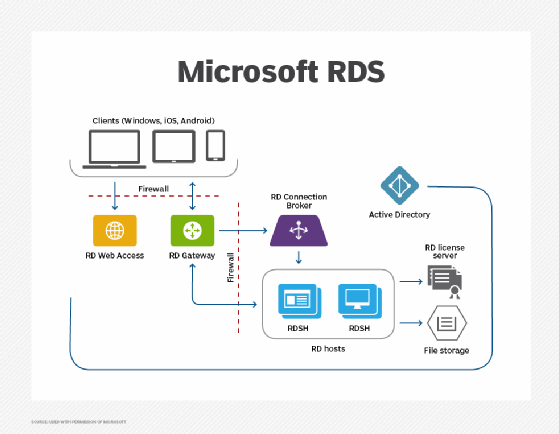
Microsoft provides a graphical user interface and a command-line interface to help with virtual desktop deployment. Now that you have installed Remote Desktop Services on Windows 2008 R2, see how to manage it with Windows PowerShell.

The management interface installed with the Remote Desktop Services (RDS) PowerShell module is made up of two parts:

  1. Providers present a logical view of a data structure (similar to a file system) with a tree structure (like that of the graphical user interface) for dealing with RDS. Providers also make use of common cmdlets like get-item, get-childitem, get-acl, set-acl and new-item>. Microsoft provides more information about providers on its website.
  2. Cmdlets in relation to RDS, provide management that may be out of the scope of the provider.

Step 1: Install Remote Desktop Services Management
The first step is simple -- in fact, you don't need to do anything at all.

The provider and cmdlets are installed by default with the RDS components.

Step 2: Run the PowerShell RDS module
There are two options for starting the PowerShell RDS Module:

  1. Go to Start Menu -- All Programs -- Administrative Tools -- Remote Desktop Services - - Remote Desktop Services PowerShell.
  2. Add the module to an existing PowerShell module by the Import-Module cmdlet built-in to PowerShell (see Figure 1).

    Import-module RemoteDesktopServices -- verbose.

Note: Unless User Account Control is disabled, you will want to "Run as Administrator."

Figure 1: Import-Module cmdlet built-in to PowerShell (click to enlarge)
[IMAGE]

Step 3: Take a ...


Digg This!    StumbleUpon Toolbar StumbleUpon    Bookmark with Delicious Del.icio.us    Add to Google


RELATED CONTENT
Virtual desktop management
Citrix CEO: Transition to on-demand services won't be pretty
What's new with virtual desktop infrastructure?
How to protect virtual desktops on a corporate network
Symantec and Quest's desktop virtualization suites hit the big leagues
Moving from Presentation Server 4.5 to XenApp 5.0 Feature Pack 2
Top tools for securing a virtual desktop infrastructure
The top 5 ways that VDI can help improve your enterprise's security
Will Windows 7 fuel desktop virtualization adoption?
Rejoice! Citrix modifies its XenDesktop license plans
How to back up PCs in a virtual desktop infrastructure

Tools and Technologies
Installing VMware View components
How to configure Wyse terminals without console interaction
Dazzle brightens Citrix flexibility story
VMware vs. Citrix virtual desktops -- what's the better deal?
VMware View 4: An improvement to View 3, but still a ways to go
VMware revs up performance on virtual desktops
Symantec and Quest's desktop virtualization suites hit the big leagues
Moving from Presentation Server 4.5 to XenApp 5.0 Feature Pack 2
Top tools for securing a virtual desktop infrastructure
Rejoice! Citrix modifies its XenDesktop license plans

Virtual desktop management tips
How to configure Wyse terminals without console interaction
How to protect virtual desktops on a corporate network
Moving from Presentation Server 4.5 to XenApp 5.0 Feature Pack 2
Top tools for securing a virtual desktop infrastructure
The top 5 ways that VDI can help improve your enterprise's security
Capacity planning for Windows Terminal Services
Taking a fresh look at Terminal Services security
How to back up PCs in a virtual desktop infrastructure
The first step toward a virtual desktop infrastructure: The assessment
How to set up Remote Desktop Services on Windows 2008 R2

RELATED GLOSSARY TERMS
Terms from Whatis.com − the technology online dictionary
Remote Desktop Protocol (RDP)  (SearchEnterpriseDesktop.com)
saved state  (SearchEnterpriseDesktop.com)
virtual machine snapshot  (SearchEnterpriseDesktop.com)

RELATED RESOURCES
2020software.com, trial software downloads for accounting software, ERP software, CRM software and business software systems
Search Bitpipe.com for the latest white papers and business webcasts
Whatis.com, the online computer dictionary


look at what you have

The biggest obstacle when starting is figuring out what you have. There are several ways to do this, including get-command and default provider cmdlets.

Get-command
Get-command is a built-in cmdlet that notes what commands are available. One of the most useful parameters for get-command is –module, gets the commands available in the module.

Take a look at the cmdlets provided by RDS Module in Figure 2.

Figure 2: Get-command -- Module RemoteDesktopSerivces (click to enlarge).
[IMAGE]

Note: For more information on get-command see get-help get-command -- full or the Microsoft help page on get-command.

Default Provider cmdlets
There are many built-in provider cmdlets designed to work consistently with all the providers (such as registry, file system and RDS).

  • Get-Childitem (dir:) Gets all the child items in the current location.
    Example: PS> get-childitem RDS:\ConnectionBroker
  • Get-Item (gi:) Gets a specific item in the provider.
    Example: PS> get-item RDS:\ConnectionBroker\DisplayName
  • Get-Member (gm:) Lists the properties for a given item.
    Example: PS> get-item RDS:\ConnectionBroker\DisplayName | get-member
  • Set-item: Used to set a property on a given item.
    Example: PS> get-item RDS:\ConnectionBroker\DisplayName | set-item -value "RDS CB"

Overall, PowerShell is a powerful tool for managing Remote Desktop Services. For more information on virtual desktop deployment, check out Microsoft'sRemote Desktop Services Team Blog.

ABOUT THE AUTHOR:   

[IMAGE]Brandon Shell
Brandon Shell has been in the IT industry since 1994. He started out as a PC tech and general fix-it guy for numerous companies. In 2000, Shell joined Microsoft as contractor for the Directory Services team, and he became a full-time employee in 2002. In 2004, Shell left Microsoft to pursue a new position focusing on his real passion, PowerShell. In 2007, he joined the PowerShell MVP ranks, and Shell has spent the past several years building his PowerShell knowledge and helping others build theirs.


Rate this Tip
To rate tips, you must be a member of SearchEnterpriseDesktop.com.
Register now to start rating these tips. Log in if you are already a member.


DISCLAIMER: Our Tips Exchange is a forum for you to share technical advice and expertise with your peers and to learn from other enterprise IT professionals. TechTarget provides the infrastructure to facilitate this sharing of information. However, we cannot guarantee the accuracy or validity of the material submitted. You agree that your use of the Ask The Expert services and your reliance on any questions, answers, information or other materials received through this Web site is at your own risk.


Enterprise Desktop Security - Virus Protection, Malware Protection, Intrusion Detection
About Us  |  Contact Us  |  For Advertisers  |  For Business Partners  |  Site Index  |  RSS
SEARCH 
TechTarget provides technology professionals with the information they need to perform their jobs - from developing strategy, to making cost-effective purchase decisions and managing their organizations' technology projects - with its network of technology-specific websites, events and online magazines.

TechTarget Corporate Web Site  |  Media Kits  |  Site Map


All Rights Reserved, Copyright 2008 - 2009, TechTarget | Read our Privacy Policy
  TechTarget - The IT Media ROI Experts